Pro upscale
Pro upscale, no settings to learn.
Tell the agent what you have — "old family photo", "anime art", "low-res screenshot" — and it adjusts the upscale behavior accordingly. No menus, no sliders.
Upscale up to 4×, recover blur, and sharpen faces — inside one chat. Pro upscale models, smart subject targeting, no desktop install.
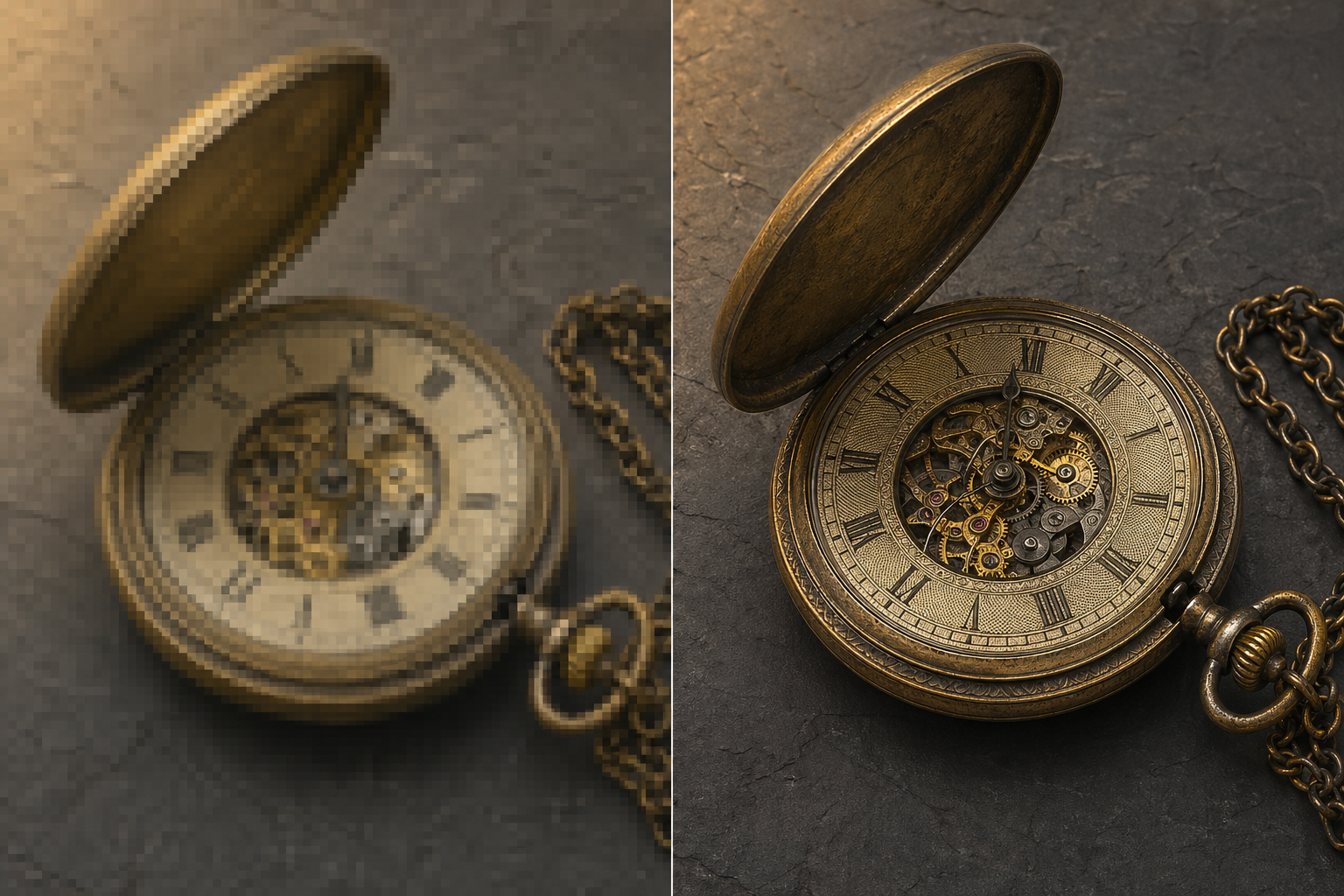
Before / after
Drop your image, describe what you want, and the agent picks the right upscale model and dials it in. Result back in chat in seconds.
Why Genspark Image Upscaler
Real upscale models, real controls, and the rest of the image agent waiting in the same chat.
Tell the agent what you have — "old family photo", "anime art", "low-res screenshot" — and it adjusts the upscale behavior accordingly. No menus, no sliders.
Whatever you upload, you get it back at a much higher resolution — sharp enough for prints, big screens, or anywhere detail matters.
Ask for sharper faces and the agent dials it in. Want it more or less aggressive? Say so. No knobs to find.
Say "only the foreground" or "keep the background detail" and the agent targets the right region. Plain language, not menus.
The same agent inpaints, outpaints, removes backgrounds, and edits with a prompt. No file shuffling between four different tools.
When the input is blurry rather than low-resolution, the agent leans into deblur and sharpen behavior. Same chat, same controls, same upscale models.
Use it for
Click any card to open the agent with the prompt pre-filled.
How it works
Paste an image into the chat or describe what you want done. The agent treats both the same way.
From your description, the agent picks the right upscale model and dials in face sharpening, subject focus, and detail level. Type a different intent and it adjusts.
Preview the upscaled image inline. Compare against the original before you commit.
Tweak by typing — "more face enhancement", "crop to 1:1". Or chain to inpaint, outpaint, or background removal in the same agent.
Side by side
Yes. Every Genspark account includes a daily free credit allowance that covers everyday upscaling. For heavier use, Plus and Pro plans add a much larger monthly credit balance, so you can run upscales back-to-back without keeping count.
Genspark uses an industry-standard upscale model under the hood — plus a faster fallback. The agent picks the right one from your description; no model menu to click through.
Upscale factors from 1× to 4×. The output is high-resolution enough for 4K viewing, big monitors, and most prints — exact size depends on your input.
They're the same engine. "Photo Unblur" is the product label inside the agent for blurry-input scenarios — the model leans into deblur and sharpening behavior, while "Upscale" leans into resolution gain. Same upscale models, same controls.
Yes. The agent recognizes AI art, anime, and illustration and routes to a mode tuned for them — clean line work and flat color blocks, no painterly smoothing as if it were a photograph. Just say "anime" or "illustration" and it adjusts.
Just describe what you want — "sharper eyes, keep skin natural", "don't invent detail, this is a restoration". The agent translates that into the right settings under the hood. No sliders to find.
Yes — that's the agent advantage. After upscaling, the same chat can inpaint to remove a watermark, outpaint to extend the canvas, remove the background, or run a prompt-based edit. No file shuffling between tools.
Images stay in your project's storage and are not used for model training. You can delete a project — and everything in it — at any time.